System Configurations
Configure Alert Manager Enterprise (AME) system settings via the Administration > Configuration page to manage licenses, logging, proxy settings, CA chains, backups.
License Management
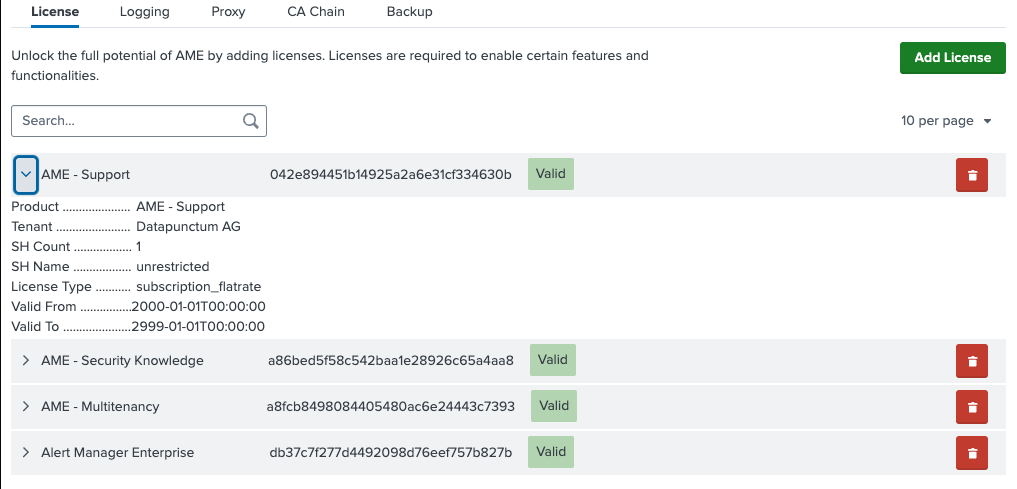
Manage AME license keys in wothe License tab:
- Click Add License.
- Enter the license key. A green tag appears if the key is valid.
- To remove a license, click Delete.
- Storage Location: Installed licenses are saved in
$SPLUNK_HOME/etc/apps/alert_manager_enterprise/local/datapunctum_licenses.conf.
Logging Configuration
Adjust AME log levels in the Logging tab under Administration > Configuration. Each AME component has its own logger settings for granular control.
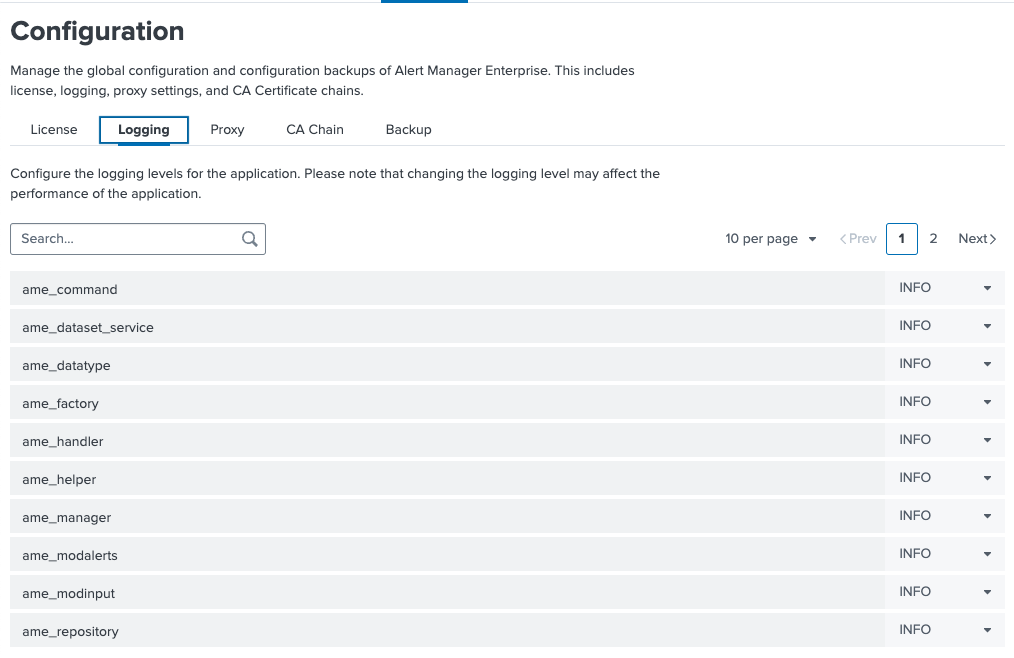
Heavy logging (e.g., DEBUG mode) can impact performance. Revert to INFO level after resolving issues to maintain optimal operation.
Proxy Settings
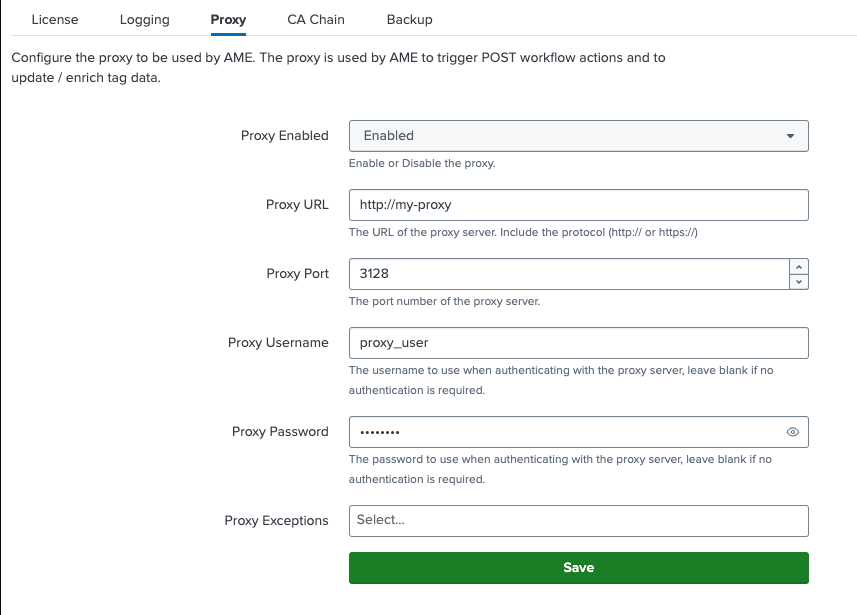
Configure proxy settings in the Proxy tab if notifications, tag updates, or other HTTP requests need routing through a proxy server. AME accesses the following URLs:
- CVE Tag Download:
https://www.cve.org/CVERecord?id={cve} - MITRE ATT&CK Tags:
https://github.com/mitre/cti/raw/master/enterprise-attack/enterprise-attack.json
CA Chain Configuration
Set up custom CA chains in the CA Chain tab for AME to use in system operations, such as workflow actions, notifications, and external requests:
- Click Add CA Chain.
- Enter:
- Name: A unique identifier for the CA chain (required).
- Description: A brief purpose of the chain (optional).
- Certificates: The full chain of certificates in PEM format (required